iPhone / iPad
Requires iOS / iPadOS 15.4 or later. In Settings, open Apps → Safari → Extensions. On older systems, use Settings → Safari → Extensions. Enable Auto Refresh & Clicker and allow access to the sites you use.
 Auto Refresh & Clicker
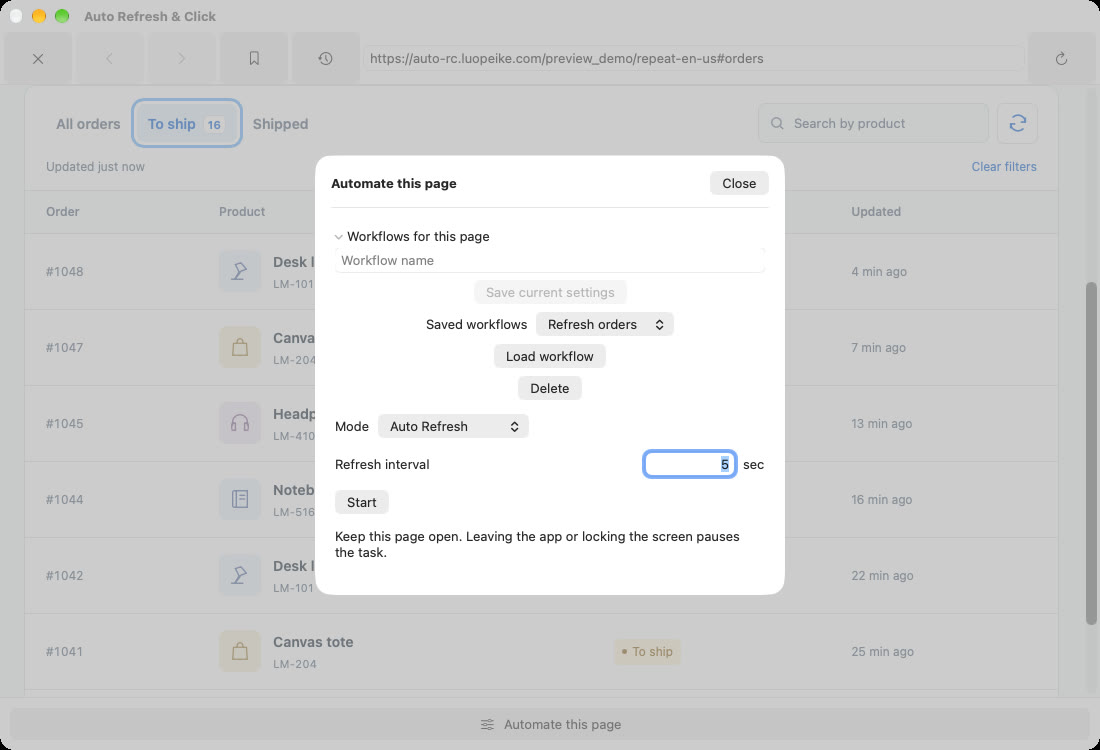
Open a page you use every day, such as a filtered order list. Choose “Open a website in the app” on the home screen, or use the extension on a page you already have open in Safari.
Select an icon directly, or enter a button or link name. If part of the name changes, enable wildcard matching and use * for that part. The task stops if it cannot identify a single available match. *_AVS_*
Requires iOS / iPadOS 15.4 or later. In Settings, open Apps → Safari → Extensions. On older systems, use Settings → Safari → Extensions. Enable Auto Refresh & Clicker and allow access to the sites you use.
Requires macOS 12 or later and Safari 15.4 or later. Open the installed app, choose Open Safari Settings, and enable Auto Refresh & Clicker in Extensions. Then open a webpage and select its Safari toolbar icon.
Install from the Chrome Web Store. Open Chrome’s Extensions menu, pin the extension if needed, and open it on the webpage you want to use.
For a dashboard or status page that needs a full reload. Here is a simple 10-second setup.
Use this when a page needs to reload before you click a button or follow a sequence of links.
For a list with its own refresh icon, where reloading the whole page would reset your filters.
Open the installed Mac app at least once, then check Safari Settings → Extensions. You need macOS 12 or later and Safari 15.4 or later. If it is still missing after relaunching Safari, contact support with your versions and installation source.
Open an ordinary http or https webpage and allow the extension to access that website in Safari settings. Browser settings, new-tab pages and some protected pages cannot run tasks. Read the message in the extension before trying again.
Make sure the button is visible and enabled. Open the extension and select the exact button again. If the page changed, its saved target may no longer apply. A title that matches several buttons is not specific enough.
Use positive whole seconds and complete every click step. After editing a running task, choose Apply changes. Then check the task summary to confirm the active configuration.
Keep Safari in the foreground and the device unlocked. iOS and iPadOS may suspend browser tasks in the background or while locked. Continuous background operation is not guaranteed.
Include your device, system and browser versions, app version, task mode and the exact error message. For an internal or private website, describe the button and what happens; you do not need to share its address or confidential data.
Contact support